StockCharts Insider: No Code? No Problem. Build Your Ideal Scan or Just Ask for It
Before We Dive In…
You’ve got the ideal scan in your head. But transforming your ideas into code is where the trouble begins. Maybe you’ve tried coding before, and all you ended up building was a wall of syntax errors. Or perhaps you don’t even know where to start. Well, the good news is that StockCharts has solutions for both scenarios.
Bottom line: You don’t need any coding knowledge to build your ideal custom scan. Let’s take them one at a time. Head over to the Advanced Scan Workbench under the Scans & Alerts menu.
"I Know Which Indicators to Use But Can’t Code Them Correctly"
You have a bunch of indicators in mind (technical, fundamental, or a mix of both). But when you put them all together, you run into problems. Too many small mistakes: missing joiners, unbalanced brackets/parentheses, or wrong parameters. Maybe the scan’s valid (meaning that it runs) but it’s not what you’re looking for. That last one’s the worst, because nothing can flag it.
The Fix (in three steps):
1 - Add your indicators or conditions using the Scan Components panel in the default Standard setting.

2 - Make necessary tweaks to the code in the Scan Criteria panel.
3 - Click Validate & Explain.

That last step’s really useful. If you have syntax errors, it’ll tell you exactly what they are and explain what you need to do to fix them.
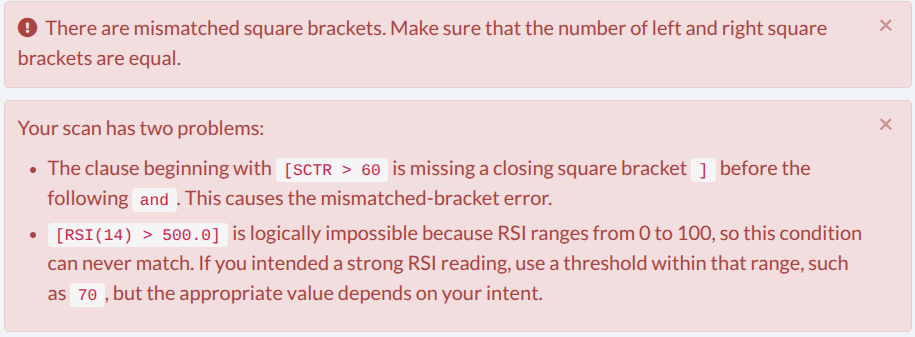
For example, I accidentally added an extra 0 to RSI > 50, turning it into 500. Plus, I forgot a closing bracket in the third line.

Here’s how the validation tool responded.
After fixing both errors, the tool validated the code and the “Explain” function kicked in, spelling out what the scan is trying to accomplish.
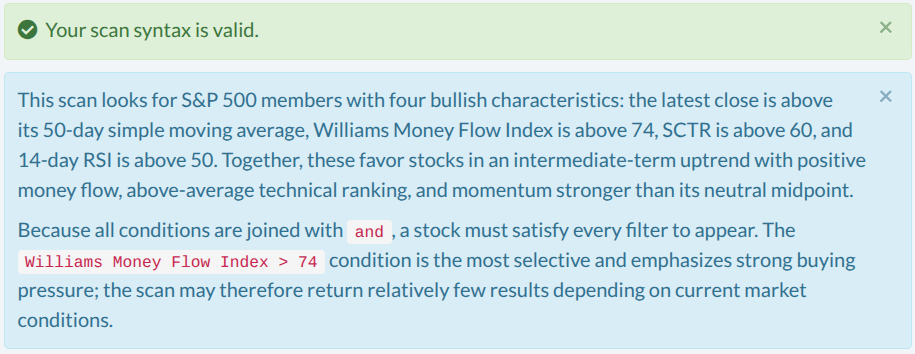
This takes care of that last error I mentioned: a scan that works but isn’t doing what you actually intended.
In this case, it helped me catch a major error. Suppose I used the Williams Money Flow Index thinking that a reading above 74 indicates an overbought condition. Wrong. That reading signals strong institutional buying, which is not what I was looking for. In short, the Explain function saved me from a functional but WRONG scan.
There’s something reassuring about this. You feel it’s got your back. Not only will the tool help you build error-free scans, but it’ll confirm in great detail what the scan is going to do.
"I Know What I’m Scanning For, But I Don’t Know Which Indicators or Conditions to Use"
You know what you’re looking for, but you don’t know which technical or fundamental indicators might be best suited for the job.
For example, let's say you want to find S&P 500 stocks that are in a correction but are still in a longer-term uptrend that have strong earnings growth.
The Fix (in three steps):
1 - Toggle from Standard to AI Wizard in the Scan Components panel. Type your request in plain English. For example, I typed: “S&P 500 stocks that are in a correction but are still in a longer-term uptrend that have strong earnings growth.”


2 - Hit the arrow. The AI Wizard writes the scan and explains it. After that, click Apply to drop it into the Scan Criteria panel.
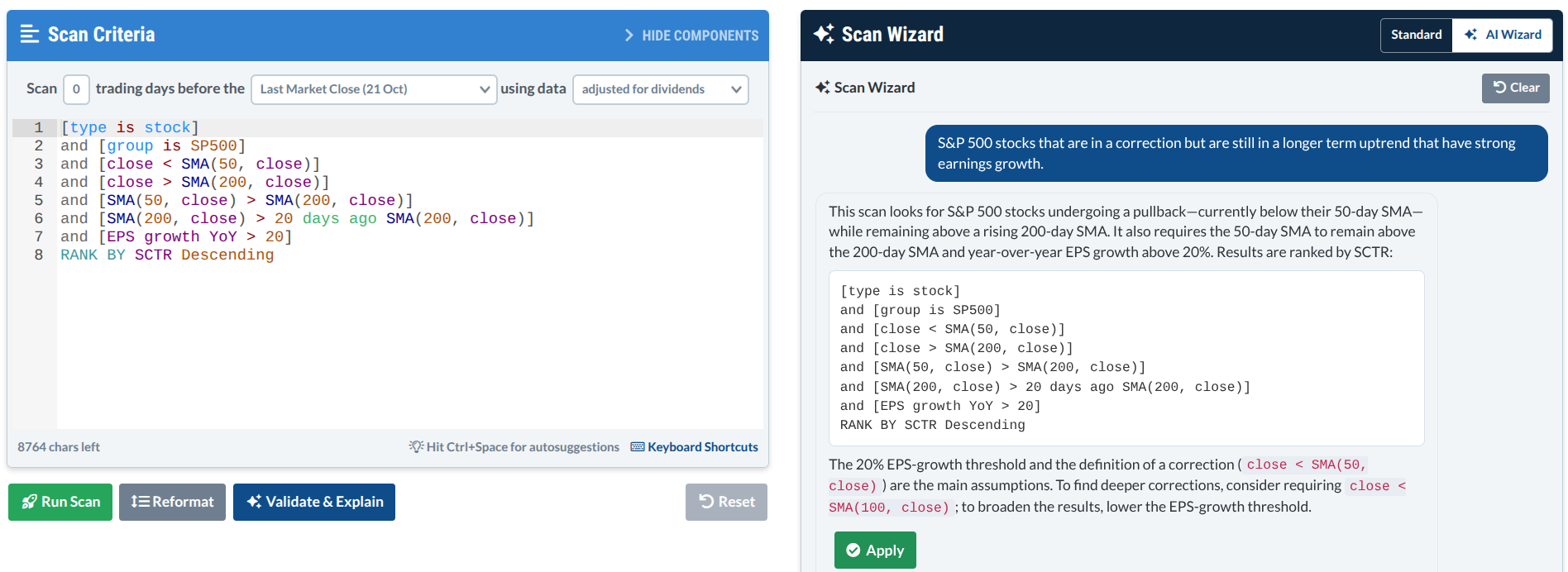
3 - Click Validate & Explain to confirm the code is error-free. Plus, read the explanation to make sure the scan is doing what you asked.
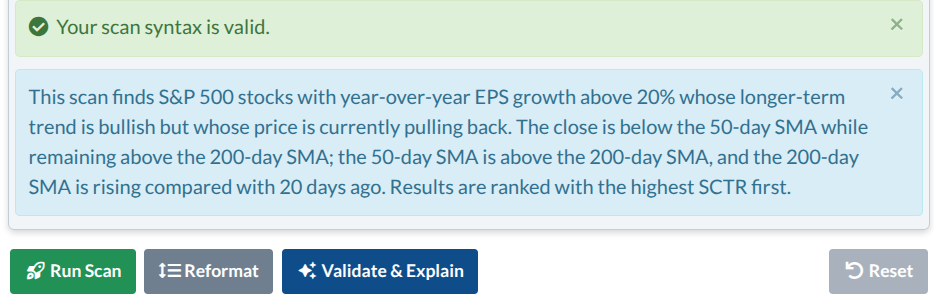
The syntax is valid, and the explanation matches exactly what I was looking for. I ran the scan and it retrieved 29 stocks. The number of stocks will vary depending on when you run it.
Give it a try yourself and make adjustments to see what it generates. With that in mind, here are a few tips.
Insider Tip #1: More Specificity Might Generate Better Scans.
The Wizard can work with general ideas, but that means it’ll have to fill in the blanks. This can be useful when you have no clue as to where or how to start. Eventually, though, you’ll want to shape and fine-tune the results. So if you can’t be specific at first, see what turns up, and do a bunch of iterations, tweaking the degree of specificity each time, until you get what you need.
For instance, finding stocks with “strong momentum” can mean a certain RSI reading, a position above a moving average, or a StockCharts Technical Rank score. You don’t know what you’ll get. It might even generate different criteria each time because there are so many ways to measure momentum. In this case, specificity really helps.
Insider Tip #2: Check the Wizard’s Assumptions and Feel Free to Push Back.
If your prompt leaves room for interpretation, the Wizard will have to make a call based on reasonable assumptions. For instance, you’re looking for stocks in a price correction. It may interpret this as a price below the 50-day SMA. It may even suggest switching over to the 100-day SMA for a deeper pullback. Is that what you had in mind? Either way, you can edit the numbers yourself, or you can tell the Wizard and let it rewrite the scan.
Insider Tip #3: Use Both Tools (Standard and AI Wizard) on the Same Scan.
There’s no rule saying that you have to choose one over the other. Try both. You’ll get a second opinion, but you might also get a second alternative scan—two (or more) different roads leading to the same goal.
For example, you can prompt the AI Wizard to create a scan from scratch based on your goals and then compare it to the one you built in Standard. Or you can ask the Wizard to review the scan already in your Scan Criteria panel, or add criteria to fine-tune it.
And That’s a Wrap
If you know your indicators but the code keeps getting in the way, you can now build it yourself with plenty of support. If you know what you want but don’t know how to get started, the AI Wizard can get you further along very quickly. In either case, there’s no coding required. And in each instance, you’ll get a clear explanation of what’s working, what’s not working, and what the scan is designed to retrieve. Seriously, open it up and try it yourself.
Disclaimer: This article is for educational purposes only, not investment advice.